Hatoba in the notch
One switch in Settings and the same strip drops down from your MacBook's notch, with the hovered widget's card below it. On a display without a notch, it's a pill you can size.
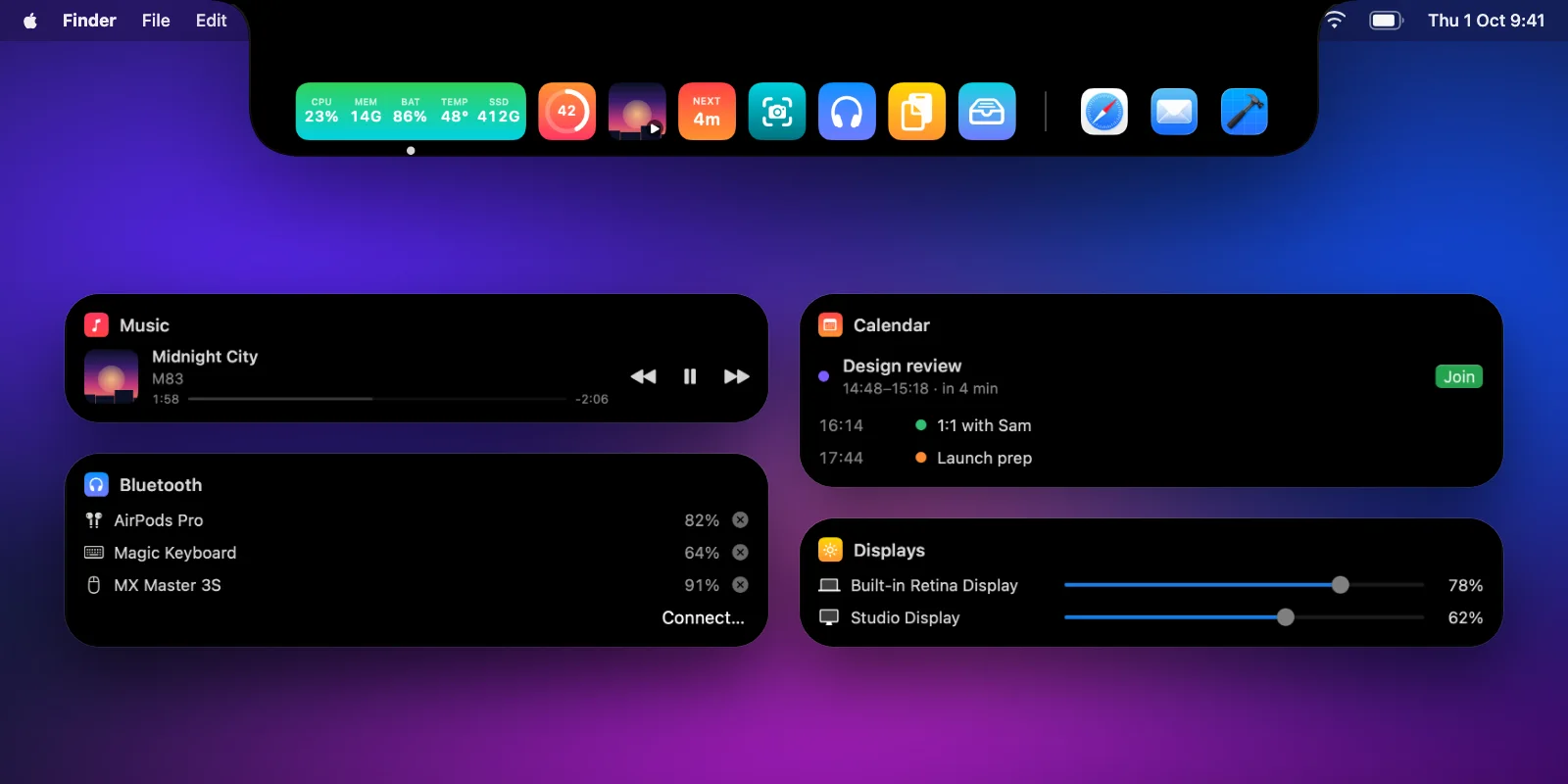
Live widgets and activities
Stats, AI, Music, Bluetooth, Weather, Clipboard, Keyboard Cleaner, Shelf, Calendar, Timer, Notes, Color Picker, Camera Mirror, Captures, Windows and Displays.
- Two-finger swipes switch cards, and skip tracks on Music
- A light haptic tick as it opens, on a Force Touch trackpad
- Live activities pop out beside it: charging, AirPods, a new track, a meeting in 5 minutes
- A cleaner volume and brightness HUD, if you want one
No notch? It's a pill you can size
You don't need a notch: the dock works on any screen, and notch mode shows a pill on displays without one.
Notch mode or a second dock
Your Mac's Dock stays. Hatoba adds a second one on the left, right or bottom edge of any screen, with apps, links and live widgets.
Common questions
- Does it replace the macOS Dock?
- No. The macOS Dock stays as it is, and Hatoba adds a second dock beside it. Put Hatoba on another edge, or on the same edge, where it sits just above the Dock. Rather have one dock on screen? Turn on "Automatically hide and show the Dock" in System Settings, or switch Hatoba to notch mode.
- Is there a free trial?
- Yes. Every feature is unlocked for 14 days from the first launch. After that, the paid features need a license, and your layout and data are kept either way.
- Which Macs are supported?
- macOS 15 Sequoia and later, on Apple silicon and Intel. You don't need a notch: the dock works on any screen, and notch mode shows a pill on displays without one.